What’s new in Oncrawl for Fall 2019
Summer vacation is over, Labor Day is past, and it’s time to get back into the swing of things. But at Oncrawl, we haven’t just been basking in the sun this summer. Here’s what we’ve rolled out over the past few months to make your SEO more productive than ever:
- Infinite log data
- Modifiable crawl limits during crawling
- Crawl email alerting
- Copy-and-paste for URL source code
- Better navigation for quicker project switching
Infinite log data
Oncrawl is now the only SEO platform to offer infinite log data. With our log analyzer, you now have access to log data for as far back as you have provided it, and the log monitoring period in the interface is unlimited.
[oc-redirect num=1]
In order to speed up log analysis and make this historical log data available for as long as you could possibly need it, we’ve made some changes to our log monitoring interface.
Log monitoring data is now available aggregated by day, by week, or by month in the Log Monitoring Report. You can switch between these levels of detail, or modify the period shown on the charts.
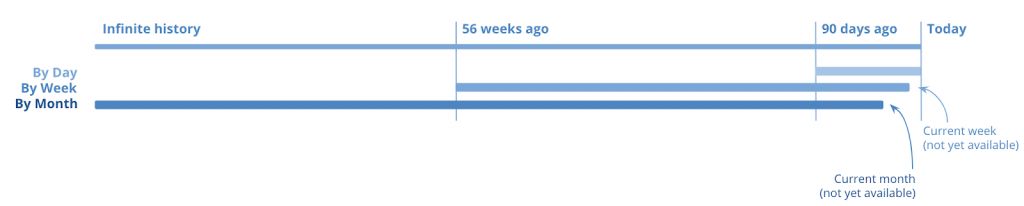
The date range for the log monitoring that you are viewing is now always visible at the right of the header of the Log Monitoring Report.
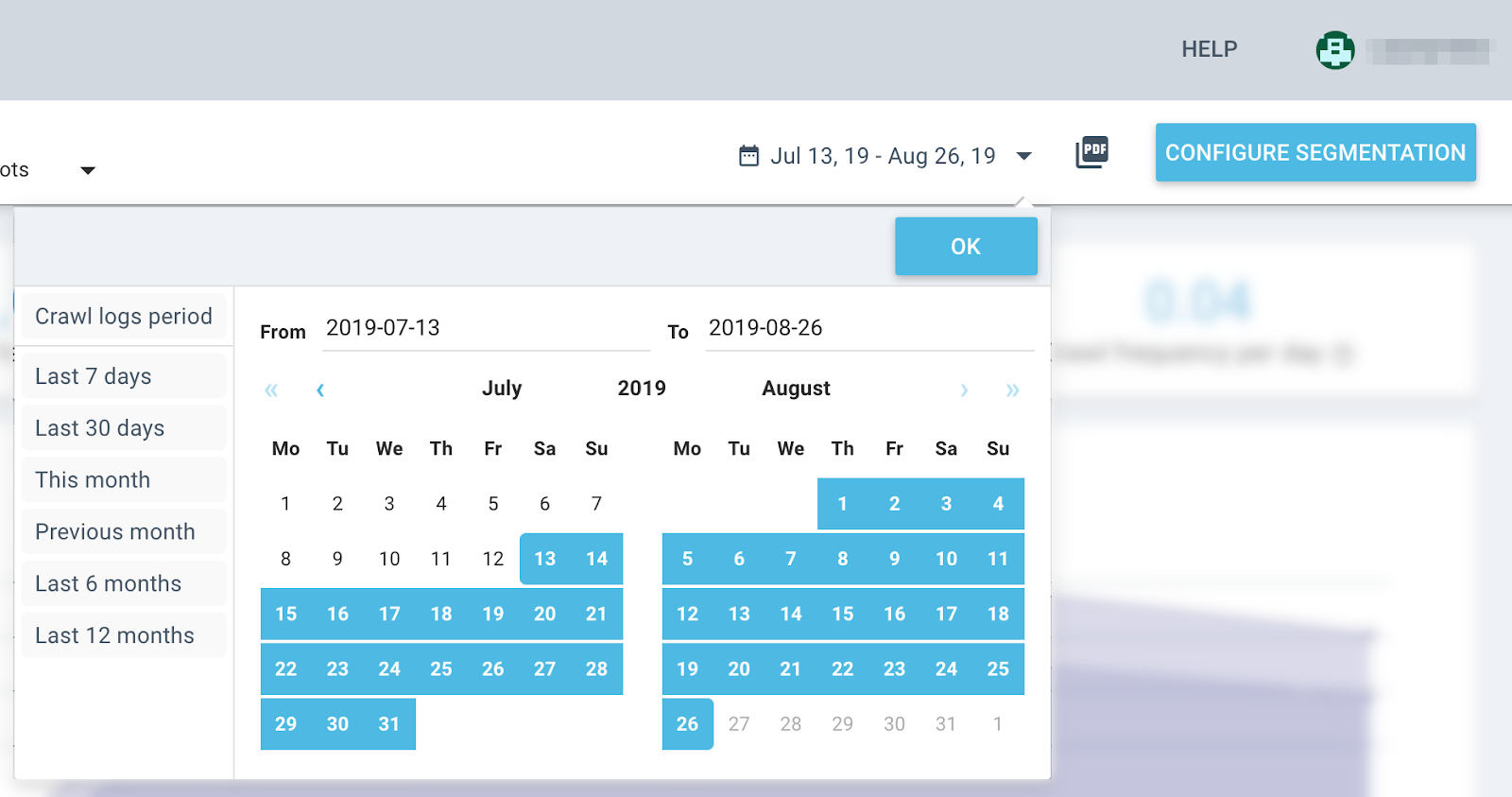
To modify the date range, you can now use a calendar selector or use one of the pre-set periods:
- The crawl logs period (the 45 days preceding the crawl)
- Last 7 days
- Last 30 days
- This month
- Previous month
- Last 6 months
- Last 12 months
- Previous year
This same calendar selector also offers the ability to switch between data by day, by week, or by month.
Here are some of the best practices for using log monitoring date ranges:
- Keep in mind that monthly and weekly data are available as soon as the month or the week is complete. This means that the current month and the current week are not yet available.
- To view month-to-date data, use days, or weeks as you near the end of the month.
- To view week-to-date data, use days.
- When unarchiving a crawl, remember that the per-day level of detail may have expired.
- Even if you have years and years of log monitoring data, consult data for as far back as you want using months.
Find out more about how to use log monitoring levels of detail.
Modifiable crawl limits during crawling
When you launch a crawl in Oncrawl, you tell the Oncrawl bot how many URLs to inspect in a period of time. This is the maximum crawl speed.
You also tell Oncrawl how many levels of links, or steps away from your Start URL the bot is allowed to explore. This is the maximum crawl depth.
After launching your crawl, you might want to modify these limits. This might occur for any number of reasons:
- You realize after the fact that the settings were not what you intended.
- Your site is large enough for the crawl to take several hours; you’ve now entered a low-traffic (or high-traffic) period on your site and you want to adjust the crawl to respect the available resources.
- You’re monitoring the crawl and you see a lot of 5xx errors: you may have over-estimated your server’s capacity.
- You’re monitoring your crawl and you see a lot of unexpected 301s or 404s that you want to correct before crawling the whole site.
- You’re monitoring your crawl and you realize a deeper or a more shallow exploration is necessary as a first step.
You can modify these limits while the crawl is running from the crawl monitoring page. Use the drop-down menu under “Pause crawl” and choose the limit you want to modify.
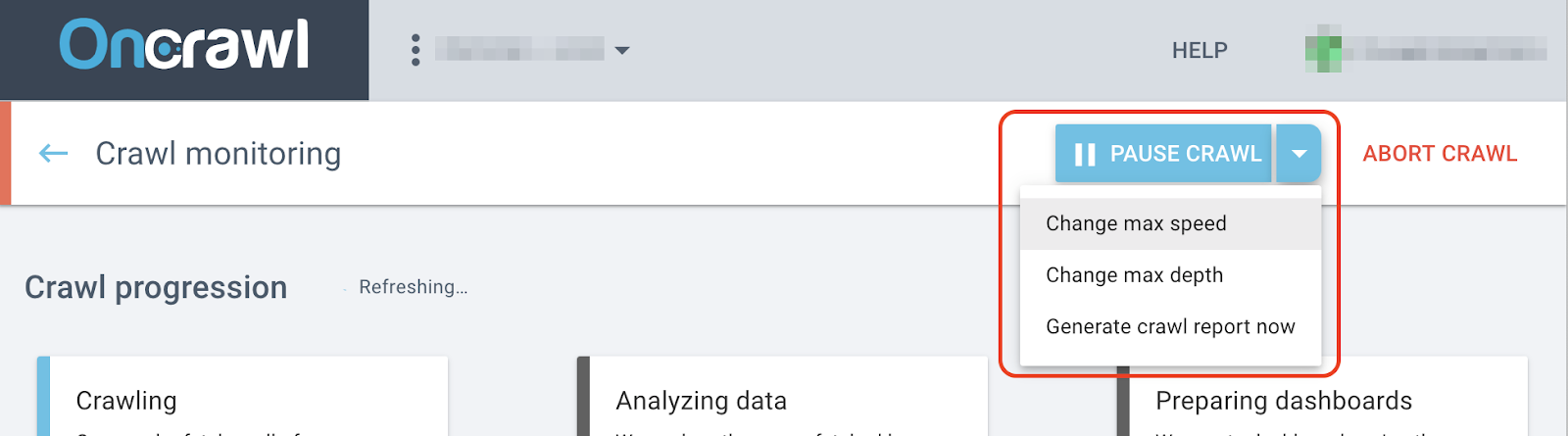
Find out more about how to modify crawl limits during a crawl.
Crawl email alerting
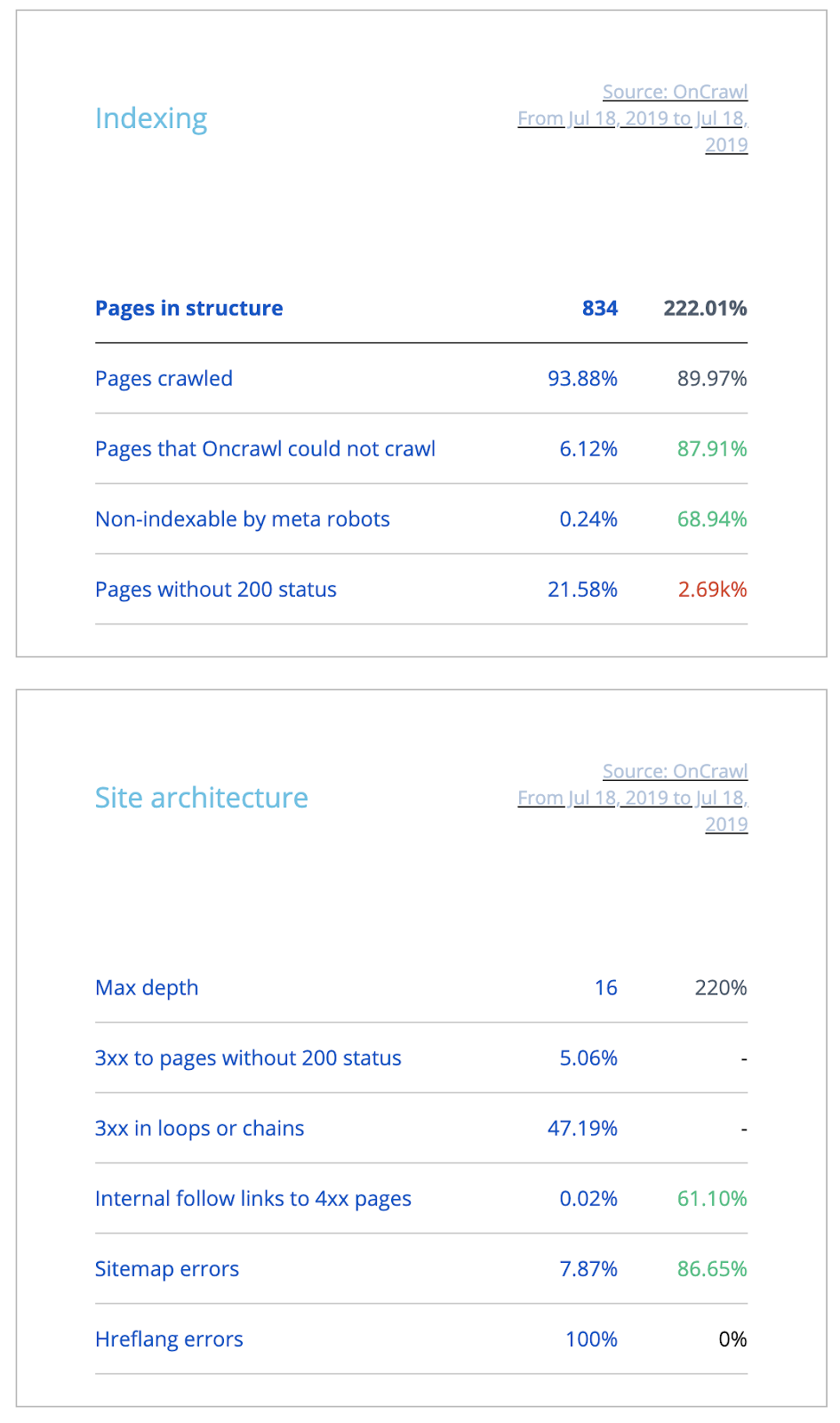
If you’ve previously sent end-of-crawl emails directly to your trash, you might want to think again. We’ve updated this email to provide you with an overview of your site crawl, including all of the alerts you might need to know whether or not this crawl has uncovered something that needs your immediate attention.
Copy-and-paste for URL source code
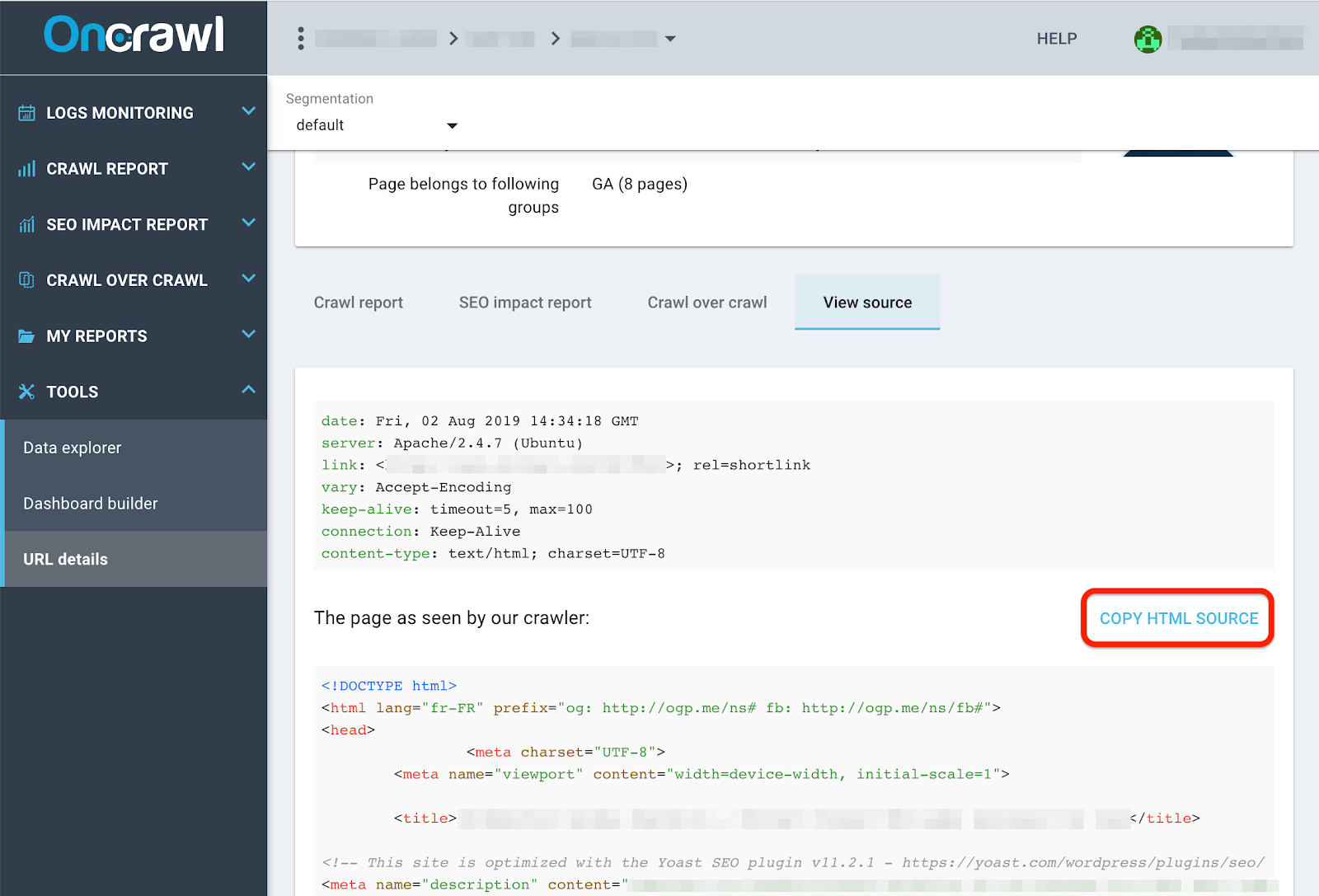
If you need to manually check for the presence or absence of content in the source code at the time of the crawl, or if you need to confirm exactly what our crawler saw in the page, we’ve made it even easier than before.
You can now copy and paste the source code of any fetched URL directly from the URL details page in a single click. No more frantic scrolling for long or code-heavy pages, and no more squinting at minified code: we’ve added a “copy HTML source” button in the “View source” table in the URL Details tool.
Better navigation for quicker project switching
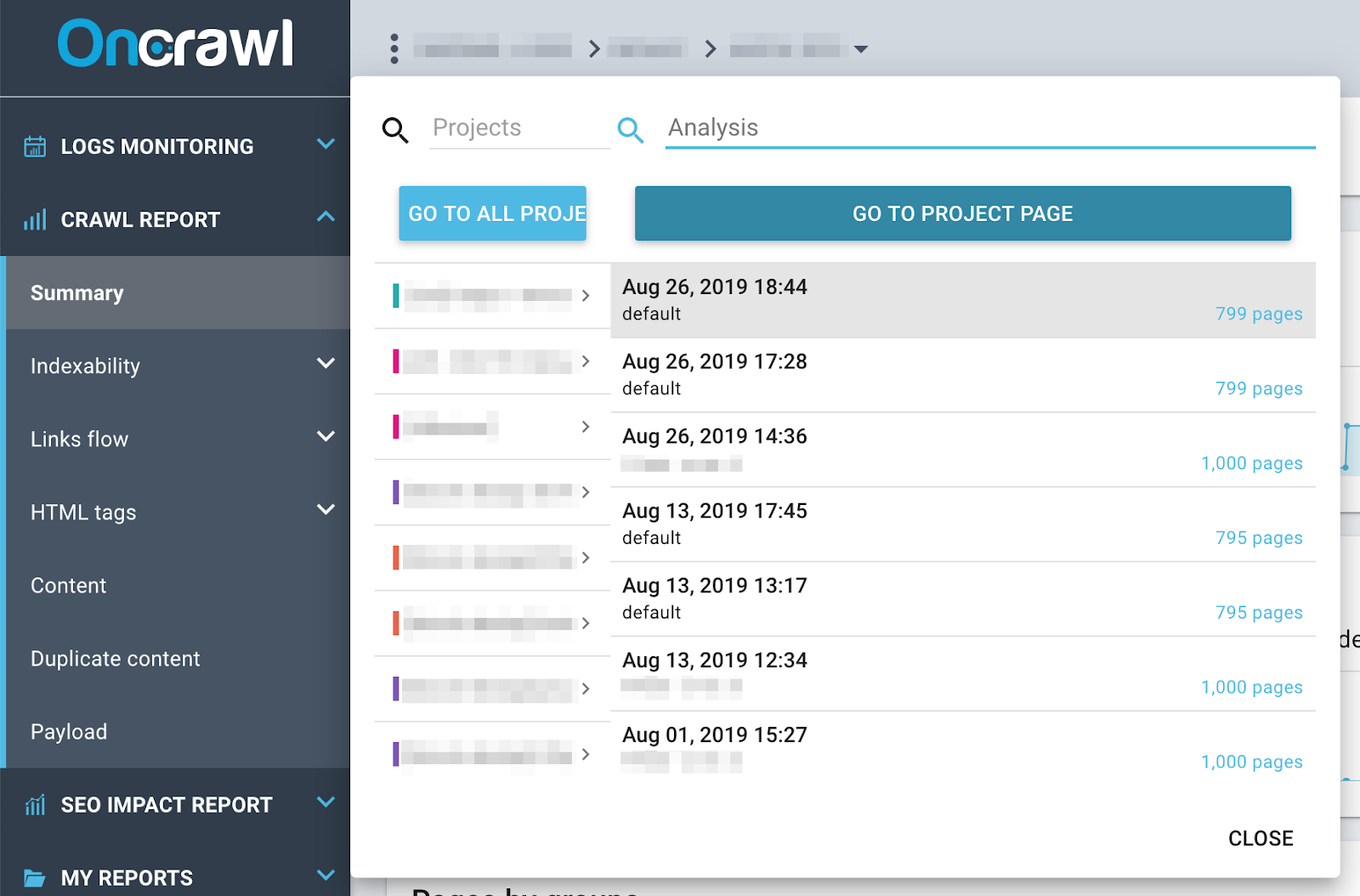
In Oncrawl, you can click on the name of the project or analysis at the top of the interface to open a quick navigation menu. This menu gives you access to all of your projects, and to all of the live analyses in your current project.
As before, you can click on a project to view the unarchived analyses in that project, and on an analysis to go directly to it. You can also search for a specific analysis or project.
This summer we’ve added a button in the quick navigation menu that allows you to return to the project home page.